
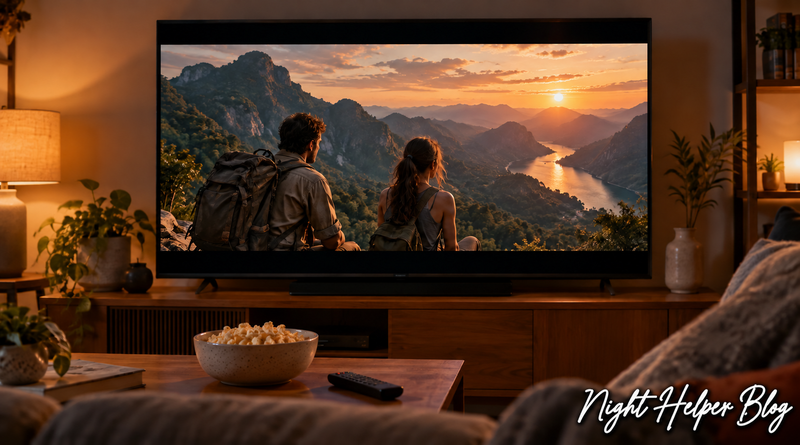
Smart TV Settings That Can Make Movie Night Better
Did you know a few smart TV settings can make movie night better? Before you decide your television needs replacing, grab the remote and take a look at its picture and sound menus. The changes you need could already be waiting there.
We all know the routine. The popcorn is ready, everyone has finally agreed on a movie, and you settle into your favorite spot. Then the picture looks strangely flat, someone asks why the actors look like they are in a daytime soap opera, and you keep reaching for the volume button just to hear the conversation.
A little preparation can make that evening much more enjoyable. You do not need to become a television expert, either. Start with one adjustment, replay the same short scene, and decide whether you prefer the result. Menu names and available features vary by brand, model, and the content you are watching.
Start With Movie or Cinema Mode
Picture mode is a useful first stop. A bright setting that catches your attention in a store may feel overwhelming in a dim living room.
Look for Movie, Cinema, or Filmmaker Mode if your television offers them. Samsung identifies Movie mode as suitable for a dark room and notes that Filmmaker Mode can look darker than other presets. That is worth remembering before you assume something is wrong.
Use the Samsung picture settings guide for guidance. If your room is still bright, compare the movie preset with Standard and choose what looks comfortable from your usual seat.
Try a scene with faces and familiar indoor lighting. You want people to look believable and the picture to feel comfortable. Give yourself a few minutes to get used to the change before switching back.
Check Motion Smoothing if Movies Look Too Smooth
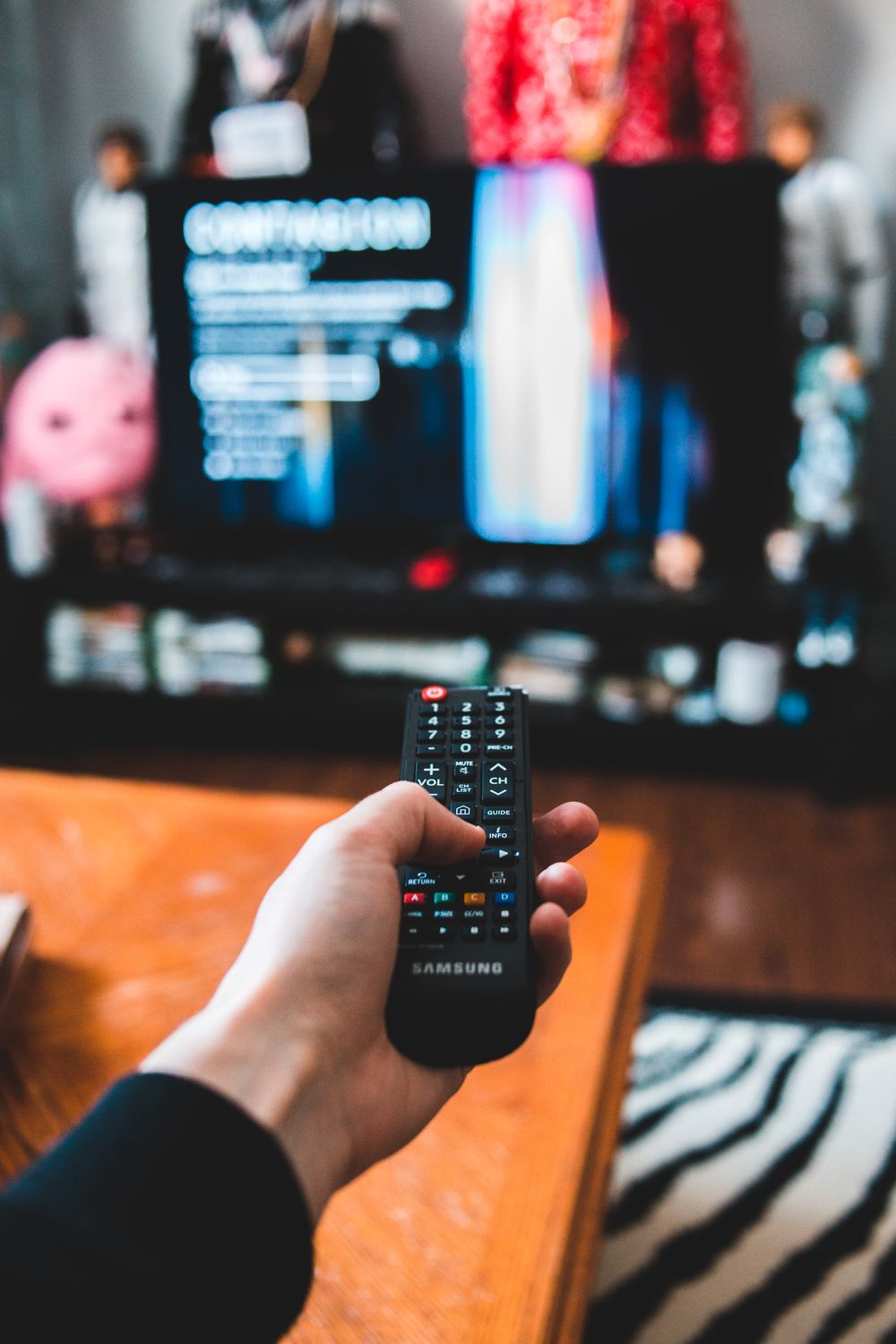
Have you ever watched a movie that somehow looked like live television? Motion smoothing may be responsible. It creates extra frames between the original images, which can give films that unusually fluid appearance often called the soap opera effect.
On supported Samsung models, look for Auto Motion Plus or Picture Clarity Settings. Sony uses the name Motionflow on many of its televisions. Try turning smoothing off, or reducing it, and compare the same scene.
Samsung explains the feature in its motion smoothing guide. There is room for personal preference here. If you find camera movement uncomfortable with smoothing disabled, try a lower custom setting rather than assuming everyone needs the same result.
Match Screen Brightness to Your Room
A sunny afternoon and a quiet evening with the curtains closed are two different viewing situations. Before changing several controls, check whether a lamp or window is reflecting directly on the screen.
If the picture remains uncomfortable, consult the TV manual for its screen brightness or backlight control. Do not confuse screen light output with black level. Sony lists these as separate adjustments, and changing black level carelessly can make shadows look washed out or hide detail.
Automatic light sensors can also change brightness according to the room. Compare that feature on and off if the image keeps changing in a way you dislike. The Sony picture quality guide explains these controls for its applicable model.
There is no single brightness number that suits every television. Use a familiar scene and make small changes. Leave advanced calibration controls alone until you understand what they do.
Be Careful With Sharpness and Color
Turning every slider up can be tempting. After all, who would not want a sharper picture? But the sharpness control adjusts perceived edges and detail; it does not add missing resolution to the original video.
If lettering, faces, or objects have distracting outlines, return toward the picture preset’s original sharpness level and compare. Avoid copying a setting number from a different television because scales and processing vary.
Use the same approach with color. If skin looks overly orange or the grass seems unnaturally bright, start again with the movie preset before changing several individual controls. Keeping a photo of your original menu settings makes experimenting easier.
Keep the Whole Movie in the Frame
If the image looks stretched or parts of it are missing, check the picture size menu. On supported Samsung TVs, Fit to Screen displays the full image without cutting it off.
Black bars above and below a widescreen film are often normal. Zooming to remove them can crop the scene. Before filling every inch of the screen, compare whether you are losing faces, scenery, or subtitles.
The goal is to see the movie’s composition comfortably. A little unused screen space is easier to live with than a character whose head keeps disappearing.
Make Conversation Easier to Hear
If everyone is asking, “What did they say?” visit the sound menu before simply raising the volume.
Some televisions offer a voice focused setting. Samsung’s Amplify mode boosts middle and higher tones and is intended to help when voices are hard to understand. Its TV sound settings guide explains the available choices.
Already using a soundbar? Check its own dialogue controls and confirm that the television’s sound output points to the device you intend to use. Some TV sound adjustments become unavailable with external speakers.
Compare a conversation scene at a comfortable volume. Subtitles are also a perfectly good option, especially when you are keeping the house quiet after bedtime.

Check Streaming Quality Before Blaming Your Television
Picture settings cannot fix a stream that is arriving at a low resolution. Netflix explains that video quality depends on factors including your subscription plan, device, the title itself, and your connection.
Its video quality guide is helpful when a film looks soft or keeps buffering. Check the title’s quality labels and your account’s playback settings. A 4K television alone does not guarantee that every movie will play in 4K.
If several people are using the internet at once, try pausing large downloads and compare playback. Where practical, a wired connection is another option to test. Higher streaming quality also uses more data, so keep your household’s internet plan in mind.
Popular Movies to Put on Your Watch List Now
Once the settings are ready, the fun part begins. Netflix’s global English language movie chart for October 5 through October 11, 2026, includes the following titles. These are weekly global rankings, and availability can differ by country. Check your local app and the age rating before pressing play.
Animals
Ranked first on that chart, this Ben Affleck directed thriller follows a mayoral candidate and his wife after their son is kidnapped. It is an option for adults who want a tense story rather than a light evening. Netflix lists its release date as October 9.
Tyler Perry’s Doing Life
Doing Life placed second. Netflix describes the drama as the story of a struggling single mother and a reformed former prisoner finding an unexpected second chance. Consider this one when you are in the mood for an emotional story.
Ice Age
The original Ice Age ranked third, making it a current chart option to check for a family viewing night. Its animated prehistoric adventure offers a different mood from the adult dramas above. Review the rating and content information for your children’s ages.
Ice Age: Collision Course
This sequel ranked fourth and offers another animated adventure to look up if your household enjoys the Ice Age characters. Your local catalog may differ from the global chart.
Visit Netflix’s latest Top 10 movie list for updated rankings, or explore its fall movie guide for release details. The chart changes weekly, so today’s favorites may move around by your next movie night.
Thinking About a New TV?
If you are already considering an upgrade, you can browse TVs at Best Buy and compare models with your room and viewing habits in mind.
Think about where everyone sits, how much daylight reaches the screen, and which streaming apps your household uses. Check the specifications and try a demonstration when possible. Even with a new television, taking time to explore its settings remains worthwhile.
For tonight, choose one picture adjustment and one sound adjustment, then replay a familiar scene. Once everyone is comfortable, put the remote down, pass the popcorn, and enjoy the movie. Which TV setting would you try first?



I have to say, I never mess around with my TV settings, but it sounds like it can really improve your experience! I am going to see if my TV can do some of these features for our next movie night.
This is really helpful! We recently got a new TV, so we’d love to make the most of its features. I’ll definitely check out the settings you mentioned and try switching to a wired connection for better video quality. Thanks for sharing these tips!
it’s amazing how much a TV can do now. We have lights on the back of ours and it syncs with what’s on screen to create a bit of ambience and I love that x
These are interesting strategies – I never thought about this! I will have to look into updating some of my TV settings.
Thank you soooo much…I can’t wait to try out these settings, I am sure they will make a huge difference.
I did know about these but totally forgot about this. My husband used to deal with the settings and I have not changed them at all. At least I know what to look for
Our TV is quite old now but my husband is the one who is more tech savvy. He will often fiddle with the settings and the sound to make sure we have the best quality for watching movies.
Thank you for these TV settings tips to make movie nights even better! I’m definitely going to do some of these for my next movie night!
Lucy | http://www.lucymary.co.uk
This was a big help. Our TV looks pretty good, but we’ve had a hard time really dialing it in, especially for movies. This is awesome.
THANK YOU! I tried these last night, and our movie has never looked so good. Try these everyone!